
Before the Lights Flicker: A Storm-Season Survival Guide for Your Digital Life
Storm prep for your digital life. A step-by-step guide to backing up your photos, protecting your devices, and staying calm when the power goes out.
There is a sound a place makes right before a storm hits.
You know it — the wind slows, the sky bruises over, and even the roosters fall quiet like they’re holding their breath. Then comes the flicker. The lights dim for half a second — a soft warning — and you think, nah, it’ll hold.
But deep down, you know it won’t.
And somewhere down the road, someone’s laptop hums a nervous little tune, trying to sync one last batch of photos before the router gasps its last.
Because the only thing worse than a storm is losing your memories.
Step 1: Make a Quick Inventory
The truth is, your life’s scattered across more devices than you remember. There’s your phone — stuffed with surf clips, screenshots, and photos of the dog. Your laptop, sitting like an old friend who hasn’t been backed up since the pandemic. And that dusty external drive you swore you’d plug in next weekend.
Grab a notepad, or better yet, a dry erase board. Write down what you’ve got — and where.
Phone. Laptop. Tablet. External drive.
Go through them like you’re sorting tackle before dawn. Every old folder, every memory card. If it has something you’d cry to lose — it’s worth saving.
Pro tip: Name your folders like stories, not timestamps. 2023-Big-Rainstorm tells you a lot more than IMG_3829.JPG.

Step 2: Choose Two Kinds of Backups
Never surf alone. Never back up once.
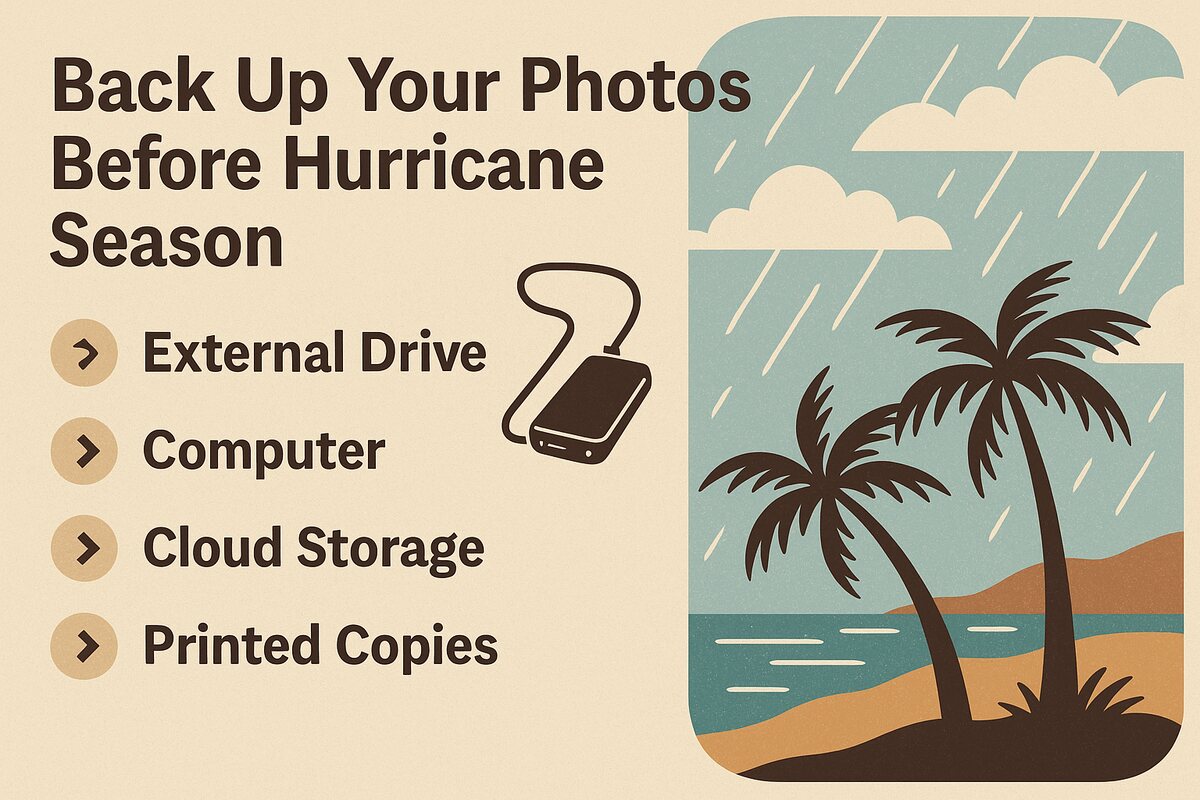
You need two copies of everything you care about — one that stays close, and one that lives in the cloud.
Local Backup (Offline) — A simple, rugged external drive. Waterproof if you can. Keep it sealed in a dry box or Tupperware, tucked away from the salt air. No Wi-Fi, no subscription, no password resets — just you and your files.
Cloud Backup (Online) — If you’ve got Starlink or decent internet, use it. Google Drive, iCloud, or better yet, your own Nextcloud running off a Raspberry Pi in the corner. Sync once, verify, and forget about it until you need it.
The golden rule: One local. One online. One less thing to worry about when the trades turn angry.
Step 3: Power Smart, Not Hard
When the grid drops, your mission isn’t to edit — it’s to preserve.
- Label your chargers.
- Charge your power banks.
- And if you’ve got a solar panel, run a test before the weather turns.
I keep an EcoFlow battery by the door — not because it’s fancy, but because it’s quiet. During a storm, silence is everything.
Unplug what you can. Lightning doesn’t care how new your MacBook is.
Step 4: Test Your Restore
Every backup’s a promise — but promises only count if they’re kept.
So test it. Grab one folder, copy it to another device, and open it up. If your photos still glow like you remember them — you did it right.
If not, give me a call. I’ve seen more dead drives and corrupt SD cards than I care to count. I’ll fix it with you before the storm has its say.
Step 5: Peace of Mind in the Storm
When the first drops hit the roof and the wind starts to pick up, you’ll feel that old familiar tension. But this time, it’ll be quieter.
Because your memories — the trip photos, your kid’s first steps, that one perfect day you’d never get back — are already safe. Backed up. Doubled. Untouchable.
This isn’t just tech prep. It’s looking after your digital life the way you’d look after anything else you love.
Ready to Storm-Proof Your Digital Life?
Every storm season makes the same point: connection is temporary, but memory is not replaceable. Plenty of people live somewhere the sky gets a vote on the Wi-Fi.
Let me build your backup plan with you — before the next flicker becomes a blackout. Off-grid capable if it needs to be, and simple enough to run from a kitchen table.